
How to Reset Jeep Grand Cherokee Screen in 10 Easy Steps
To reset your Jeep Grand Cherokee screen, start with a soft reset by holding the power button or volume knob for about 10 seconds until the screen reboots. If that doesn’t work, try resetting through the settings menu under System or Display. Should the screen remain unresponsive, perform a hard reset by disconnecting the battery for 10-15 minutes. Keep your software updated and your screen clean to avoid issues. For a thorough guide on troubleshooting and maintenance, explore further details.
Perform a Soft Reset on Your Jeep Grand Cherokee Screen
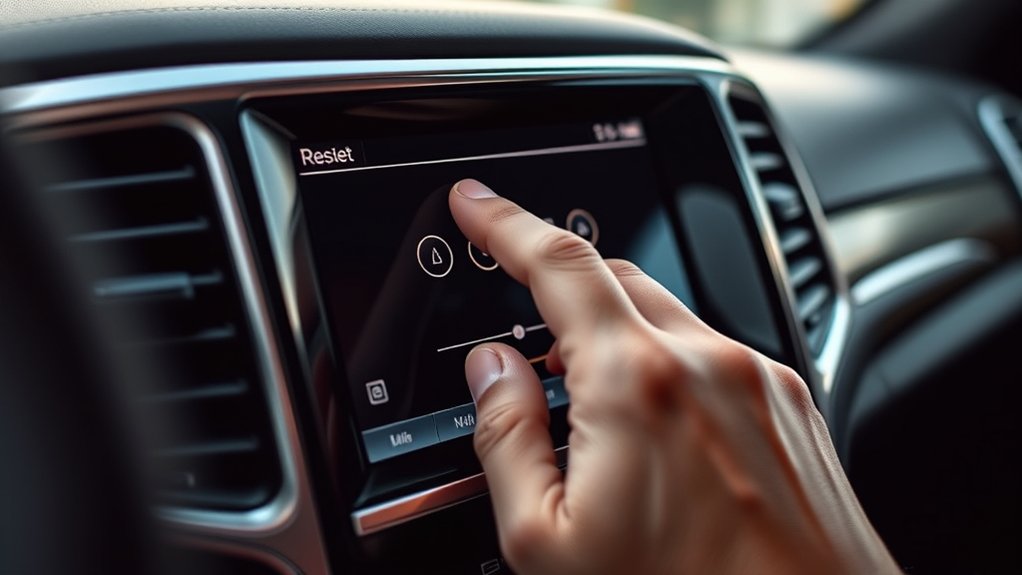
Before diving into more complex solutions, you can perform a soft reset on your Jeep Grand Cherokee screen to quickly resolve minor glitches.
To do this, start by turning your vehicle on but keep the engine off.
Next, locate the power button on the infotainment screen or the volume knob, depending on your model.
Press and hold the power button or volume knob for about 10 seconds.
You’ll see the screen go black, then the Jeep logo will appear, indicating the system is rebooting.
This process won’t erase any saved data or settings, so it’s safe to try without losing your preferences.
If the screen remains unresponsive after this, you might need to explore other reset methods or consult professional help.
Reset the Screen Using Steering Wheel Controls

You can reset your Jeep Grand Cherokee screen using the steering wheel controls. First, locate the buttons that let you navigate the menu on your display.
Then, find the screen reset option and confirm the command to complete the process.
Locate Steering Wheel Buttons
Two vital steering wheel buttons you’ll need to locate are the menu and the OK/select buttons, which allow you to navigate and reset the Jeep Grand Cherokee screen.
The menu button typically sits on the left side of the steering wheel among other control buttons. It often has an icon resembling a list or lines stacked vertically.
The OK or select button is usually nearby, sometimes in the center of a directional pad or as a separate button.
These buttons let you interact with the vehicle’s digital display without taking your hands off the wheel.
Knowing their exact location is essential before moving forward with resetting the screen. Take a moment to familiarize yourself with their position so you can confidently use them when needed.
Navigate Screen Reset Menu
Although the process might seem complex at first, maneuvering the screen reset menu using your Jeep Grand Cherokee’s steering wheel controls is straightforward once you know the steps.
Start by pressing the “Menu” or “OK” button on the steering wheel to bring up the main menu on the screen. Use the arrow buttons to scroll through options until you find the “Settings” or “System” menu.
Press the “OK” button again to enter that menu. From there, navigate with the arrows to locate the “Screen Reset” or “Factory Reset” option. Keep scrolling carefully to avoid selecting the wrong setting.
Using these controls lets you access the reset function without taking your hands off the wheel, maintaining safety and convenience as you prepare to reset your screen.
Confirm Reset Command
How do you confirm the reset command once you’ve found the screen reset option? Use the steering wheel controls to highlight the reset choice on your Jeep Grand Cherokee’s display.
Typically, you’ll press the “OK” button or the center select button on the right side of the wheel to confirm. This action sends the reset command to the system, initiating the screen reboot process.
You might see a brief message indicating the reset is in progress. Don’t turn off the vehicle or remove the key during this time to avoid interrupting the process.
Once complete, the screen will return to its default settings or home screen. If the screen doesn’t reset, repeat the steps or consult your owner’s manual for further troubleshooting.
Reset the Screen Through the Vehicle’s Settings Menu

When your Jeep Grand Cherokee’s screen acts up, you can quickly restore its functionality by accessing the vehicle’s settings menu. Start by turning on your ignition and tapping the “Settings” icon on the touchscreen.
Scroll down to find the “System” or “Display” option, then select it. Within this submenu, look for a “Reset” or “Factory Reset” option related to the screen or infotainment system.
Confirm your choice when prompted to initiate the reset. This process will refresh the screen’s software without affecting your saved data or vehicle settings.
After the reset, the screen should reboot and operate normally. If issues persist, consider other troubleshooting steps before moving on to more advanced resets.
This method offers a simple and safe way to resolve minor glitches.
Perform a Hard Reset If Soft Reset Fails
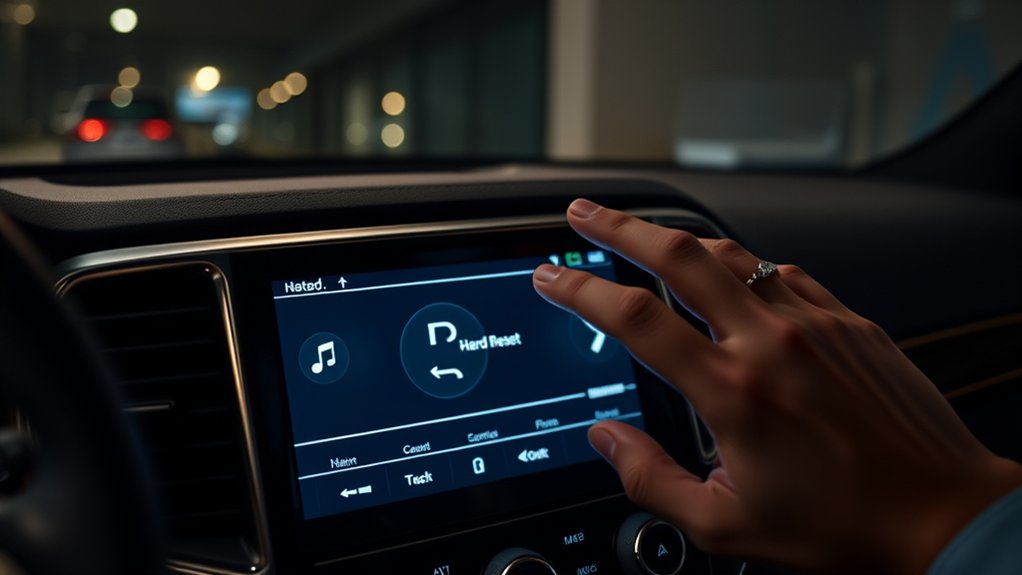
If your soft reset doesn’t fix the screen, it’s time to perform a hard reset. You’ll want to try this when the system is completely unresponsive or frozen.
Follow these step-by-step instructions to safely reset your Jeep Grand Cherokee’s screen.
When To Perform Hard Reset
Although a soft reset often resolves minor glitches with your Jeep Grand Cherokee’s screen, you’ll need to perform a hard reset when the system remains unresponsive or continues to malfunction after the soft reset.
If the touchscreen freezes, fails to respond to your inputs, or displays persistent error messages, a hard reset becomes necessary. You should also consider a hard reset if the screen fails to power on or the settings don’t save properly.
Essentially, when basic troubleshooting doesn’t restore normal function, a hard reset can help by fully rebooting the system and clearing deeper software issues. Keep in mind, a hard reset is more thorough and should only be done when softer methods haven’t worked to avoid unnecessary disruption.
Step-by-Step Hard Reset
Since a soft reset hasn’t fixed your Jeep Grand Cherokee’s screen issues, you’ll need to perform a hard reset to fully reboot the system. Start by turning off your vehicle completely and removing the key from the ignition.
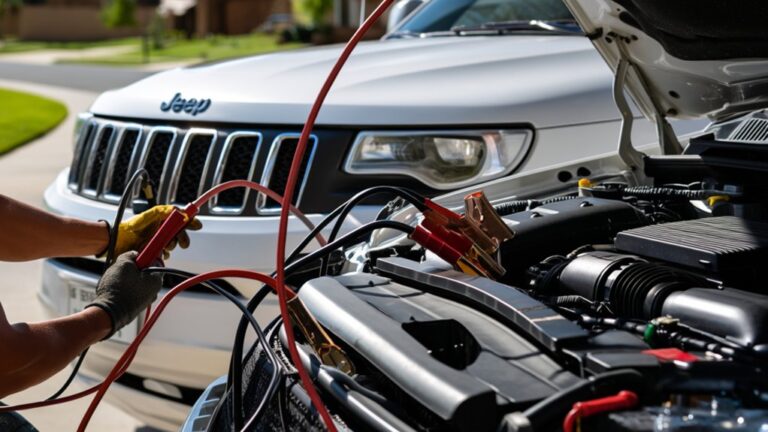
Next, disconnect the negative terminal of your Jeep’s battery using a wrench—this cuts power to the electrical system. Leave it disconnected for about 10 to 15 minutes to guarantee the system fully resets.
After waiting, reconnect the battery terminal securely and tighten it.
Finally, start your Jeep and check if the screen powers on and functions normally. This hard reset clears deeper glitches that a soft reset can’t fix, so if your screen still doesn’t respond, it might be time to consult a professional technician.
Identify Your Jeep Grand Cherokee Model and Screen Type

Before you can reset your Jeep Grand Cherokee screen, you need to know exactly which model and screen type you have. Different models come with various infotainment systems, and identifying yours ensures you follow the right reset procedure without frustration.
Here’s how to quickly pinpoint your setup:
- Check your vehicle’s year and trim level for system clues
- Look at your screen’s size and interface design
- Identify if you have Uconnect 3, 4, or 5 systems
- Refer to your owner’s manual or Jeep’s official website for specifics
Knowing this helps you avoid guesswork and prevents accidental damage, giving you confidence to reset your screen effectively. It’s the first step toward a smooth, hassle-free fix.
Get Your Jeep Ready to Reset the Screen
Now that you’ve identified your Jeep Grand Cherokee’s model and screen type, it’s time to prepare your vehicle for the reset process. Start by turning off the engine and removing the key or fob to confirm the system powers down completely.
Next, open the driver’s door and keep it open throughout the reset to prevent the vehicle from entering sleep mode.
Make sure your Jeep is parked in a safe, well-lit area with the parking brake engaged.
If your model has a touchscreen, clean it gently with a microfiber cloth to avoid input errors during reset.
Finally, verify that your battery is sufficiently charged or connect a charger to prevent power interruptions that could cause complications during the reset.
You’re now ready to proceed confidently.
Troubleshoot If Your Screen Stays Frozen After Reset
If your Jeep Grand Cherokee’s screen remains frozen after a reset, don’t panic—you can troubleshoot the issue with a few simple steps.
First, try these actions to get your screen responsive again:
- Perform a hard reboot: Hold the power button for 10-15 seconds until the system restarts.
- Check the battery: Low voltage might cause screen freezes; ensure your battery is fully charged.
- Disconnect and reconnect the battery: This can reset the system more deeply if a simple reset didn’t work.
- Inspect for physical damage: Cracks or water exposure could affect screen functionality.
If none of these steps fix the problem, it might be a hardware issue, and contacting a professional technician is your best bet.
Update Your Jeep Grand Cherokee Infotainment System Software
Wondering how to keep your Jeep Grand Cherokee’s infotainment system running smoothly? Updating the software is key. Start by connecting your vehicle to a strong Wi-Fi network or use a USB drive if your model supports it.
Check for available updates through the Uconnect system settings menu. If an update is available, follow the on-screen prompts to download and install it.
This process can improve system stability, add new features, and fix bugs causing screen issues. Make sure your Jeep is in park and the engine is running during the update to avoid interruptions.
Regularly updating your infotainment software helps prevent glitches and keeps your system responsive, ensuring you enjoy a seamless driving experience with all the latest enhancements.
When to Try a Factory Reset of the Infotainment System
Keeping your Jeep Grand Cherokee’s infotainment system updated often resolves many common issues, but sometimes software glitches persist despite the latest updates. When you notice persistent problems like freezing, unresponsive touchscreen, or apps crashing repeatedly, it’s time to contemplate a factory reset.
This step wipes all settings and data, restoring the system to its original state.
You should try a factory reset if you experience:
- Constant screen freezes that interrupt your drive
- Audio or Bluetooth malfunctions that won’t fix with restarts
- Navigation errors that don’t correct after updating maps
- Repeated system crashes despite multiple restarts
Performing a factory reset can feel drastic, but it often clears deep software bugs, giving your infotainment system a fresh start.
Tips to Prevent Future Touchscreen Issues in Your Jeep Grand Cherokee
To keep your Jeep Grand Cherokee’s touchscreen working smoothly, make sure you regularly update the software and clean the screen gently with a soft cloth.
Avoid using harsh chemicals or abrasive materials that can damage the display.
Also, try to park in shaded areas to prevent excessive heat from affecting the screen’s performance.
Regular Software Updates
Regular software updates play a crucial role in maintaining your Jeep Grand Cherokee’s touchscreen performance. Keeping your system current ensures smoother operation, fixes bugs, and introduces new features that enhance your driving experience.
Neglecting updates can lead to frustrating glitches or slow responses. To stay ahead, make it a habit to:
- Check for updates regularly through your vehicle’s infotainment settings or Jeep’s official website.
- Download updates promptly when connected to Wi-Fi to avoid data charges and speed issues.
- Follow on-screen instructions carefully during installation to prevent errors.
- Reach out to Jeep customer support if you encounter update problems or software malfunctions.
Screen Cleaning Best Practices
Although your Jeep Grand Cherokee’s touchscreen is designed to be durable, improper cleaning can cause smudges, scratches, or unresponsive areas over time. To keep it functioning smoothly, use a soft, lint-free microfiber cloth to wipe the screen gently. Avoid paper towels or abrasive materials, as they can leave scratches.
Dampen the cloth slightly with distilled water or a screen-safe cleaner—never spray liquids directly on the screen. Clean the screen regularly to prevent buildup of oils and dirt, but don’t overdo it; excessive wiping can wear down the protective coating.
Also, avoid harsh chemicals like ammonia or alcohol-based cleaners, which can damage the screen’s surface. Following these simple steps helps maintain your touchscreen’s responsiveness and clarity, preventing future issues.
Avoid Excessive Heat Exposure
Since excessive heat can damage your Jeep Grand Cherokee’s touchscreen, you should take steps to keep it cool. High temperatures can cause screen lag, discoloration, or even permanent failure. Protecting your screen means protecting your driving experience.
To avoid heat damage, try these tips:
- Park in shaded areas or use a windshield sunshade to block direct sunlight.
- Crack windows slightly to allow airflow and reduce cabin temperature.
- Avoid leaving your Jeep parked under the sun for extended periods.
- Use climate control to keep the interior temperature moderate when driving.
Frequently Asked Questions
What Causes the Jeep Grand Cherokee Screen to Freeze Initially?
Your Jeep Grand Cherokee screen freezes initially because of software glitches, outdated firmware, or electrical issues. You might also face problems from a weak battery or faulty connections causing the system to become unresponsive or slow down.
Can a Dead Car Battery Affect the Touchscreen Functionality?
You know what they say, “A chain is only as strong as its weakest link.” Yes, a dead car battery can disrupt your touchscreen’s power, causing it to malfunction or freeze until the battery’s charged or replaced.
Are There Any Warranty Implications When Resetting the Infotainment System?
You usually won’t void your warranty by resetting the infotainment system yourself, but if you cause damage or use unauthorized software, Jeep might deny coverage. Always check your warranty terms and consider professional help if unsure.
How Do I Connect My Smartphone to the Jeep Grand Cherokee Screen?
Picture your smartphone’s icon lighting up on the Jeep’s screen. Just enable Bluetooth on your phone, tap “Add Device” on the screen, select your phone, and follow prompts to pair. You’re connected and ready to go!
What Should I Do if the Screen Displays Distorted Colors or Lines?
If your screen shows distorted colors or lines, try restarting your Jeep’s infotainment system first. If that doesn’t help, check for software updates or consult a dealer to inspect potential hardware issues or screen damage.
Conclusion
So, next time your Jeep Grand Cherokee screen decides to throw a digital tantrum, don’t panic—just reset it like a tech-savvy wizard. Whether it’s a soft reset or the nuclear option of a factory reset, you’ve got this. Remember, your screen isn’t plotting against you… probably. Keep it updated, and maybe, just maybe, it’ll behave. If not, well, at least you’ve become an expert in Jeep screen exorcisms. Happy driving!