How to Change Language on Jeep Wagoneer in 7 Easy Steps
To change the language on your Jeep Wagoneer, start by turning on the vehicle and accessing the infotainment “Settings” menu. Find “Language” under Display or General settings, then select your preferred language from the list. Confirm your choice by tapping “Apply” or “Confirm,” and wait for the system to update. If issues occur, verify your software’s up-to-date and restart if needed. Keep exploring to discover tips for troubleshooting and customizing your language experience further.
Find the Language Settings Menu on Your Jeep Wagoneer
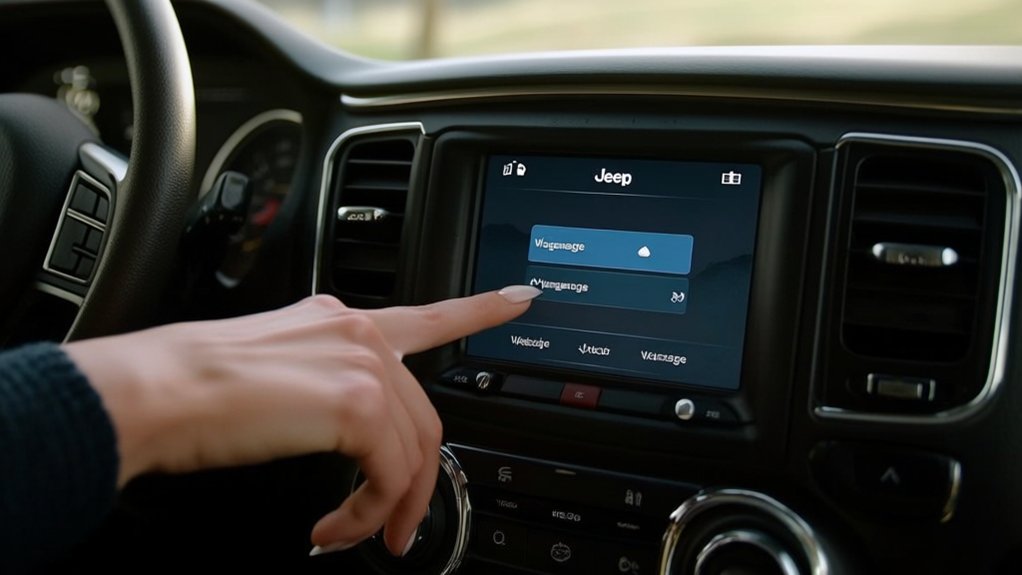
Wondering where to start changing the language on your Jeep Wagoneer? First, you’ll want to access the main infotainment screen located in the center console. Turn on your vehicle and tap the touchscreen to wake it up if needed.
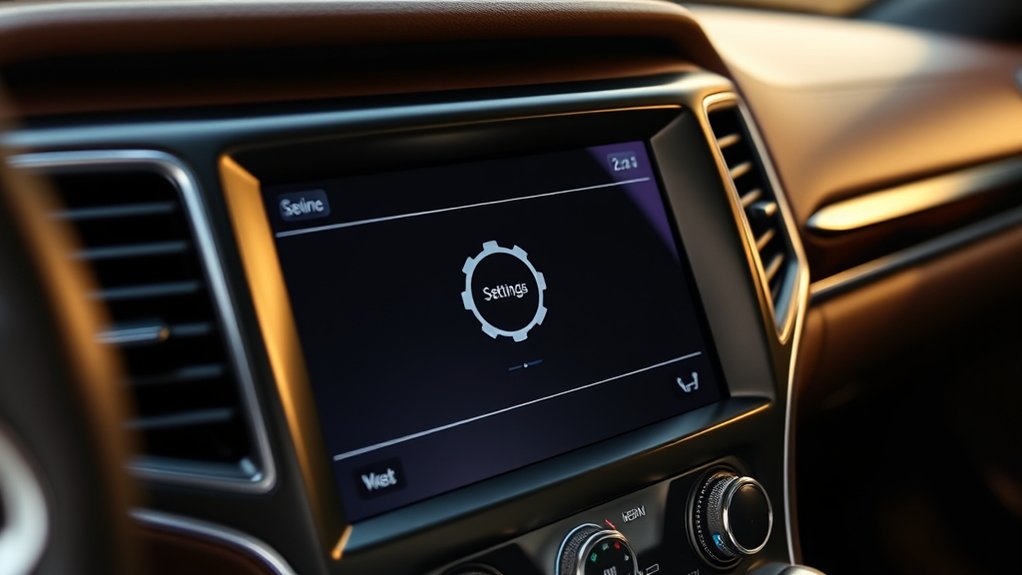
Next, look for the “Settings” icon—it usually resembles a gear symbol. Once you tap “Settings,” you’ll see various options related to your vehicle’s systems.
Scroll through the menu until you find the “Language” or “System Language” option. Depending on your model year, this might be under a submenu like “Display” or “General.”
If you’re unsure, consult your owner’s manual for exact navigation steps. Finding this settings menu is essential before you can pick your preferred language.
Choose Your Preferred Language on the Jeep Wagoneer
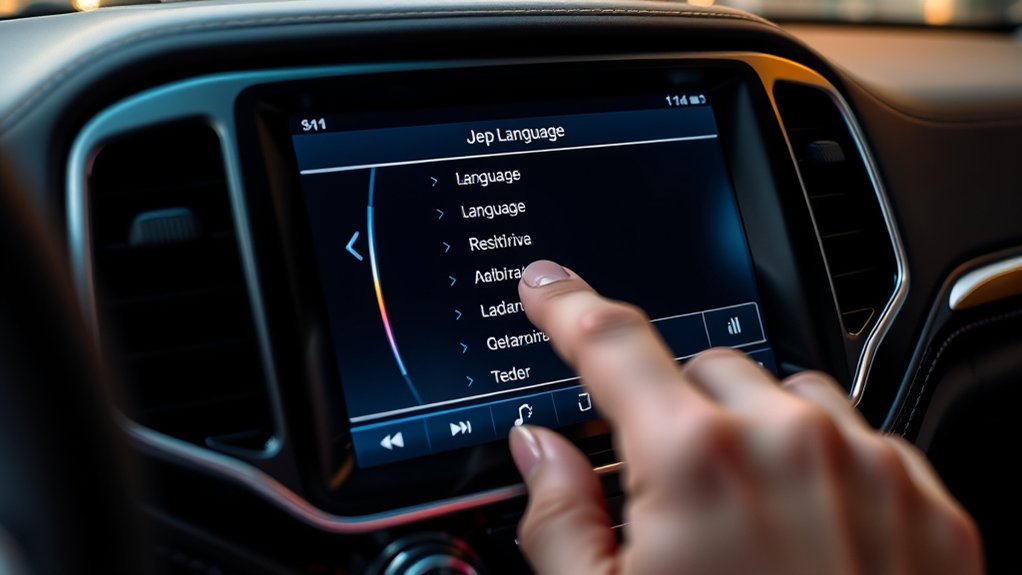
Once you’ve located the Language settings menu on your Jeep Wagoneer, you’re ready to select the language that best suits you. The process is straightforward and quick, guaranteeing your vehicle’s interface speaks your preferred language.
Here’s how you do it:
- Scroll through the list of available languages using the touchscreen or control knob.
- Highlight the language you want by tapping on it or pressing the select button.
- Double-check the selection to confirm it matches your choice.
Choosing the right language tailors your driving experience, making navigation, alerts, and system information easier to understand.
Take your time to explore the options and pick the one that fits your needs perfectly. This step prepares you for the final confirmation to apply the change.
Confirm and Apply Your Language Change
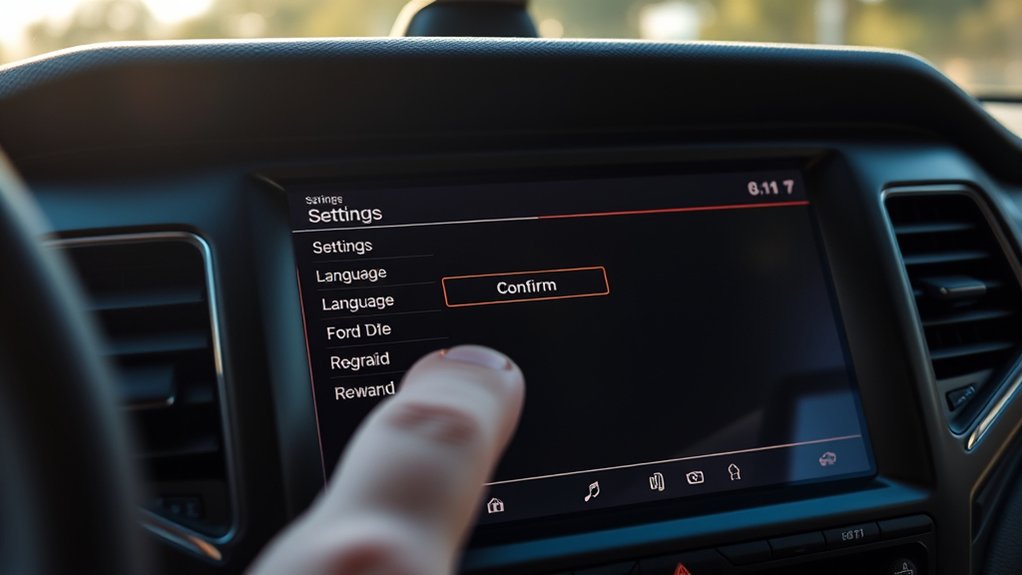
Before the new language setting takes effect, you need to confirm and apply your choice within the Jeep Wagoneer’s system. After selecting your preferred language, the screen will prompt you to verify your selection. Simply review the language displayed to ensure it’s the one you want.
Once confirmed, tap the “Apply” or “Confirm” button to save the change. The system may take a few moments to update, during which the interface might briefly pause or refresh. Don’t turn off the vehicle or the infotainment system during this process to avoid interruptions.
After applying, the entire system, including menus and alerts, will display in your chosen language. If you want to make adjustments later, you can revisit the language settings anytime.
Troubleshoot Common Jeep Wagoneer Language Issues
If you encounter issues with your Jeep Wagoneer’s language settings not updating correctly or reverting unexpectedly, there are several straightforward steps you can take to troubleshoot the problem.
First, ensure your vehicle’s software is fully updated, as outdated software can cause glitches.
Second, check if your vehicle’s ignition is on and the system is fully booted before making changes, since premature adjustments mightn’t save properly.
Third, verify that you’re following the correct menu navigation and confirming the language change before exiting the settings.
- Update vehicle software to the latest version.
- Make language changes only when the system is fully loaded.
- Carefully follow menu prompts and confirm your selection.
These steps often resolve common language setting issues quickly.
Reset Language Settings to Factory Defaults
Although changing your Jeep Wagoneer’s language settings usually works smoothly, you might need to reset them to factory defaults to fix persistent issues or start fresh.
To do this, first access the main menu on your infotainment screen. Navigate to the settings icon, then select “System” or “General.” Look for the option labeled “Reset” or “Restore Factory Settings.” Confirm your choice when prompted; this will erase all customized settings, including language preferences, restoring everything to the original factory state.
Keep in mind this action can’t be undone, so make sure you want to proceed. After the reset, your Wagoneer will reboot, and you’ll need to reselect your preferred language from the initial setup screen before continuing to use your vehicle’s system.
Customize Display and Voice Language Preferences
You can customize both the display language and voice command language to suit your preferences. This lets you navigate menus and use voice controls in the language you’re most comfortable with.
Adjusting these settings guarantees a more personalized and intuitive driving experience.
Display Language Settings
Wondering how to tailor your Jeep Wagoneer’s display and voice settings to your preferred language? You can easily customize the display language to make your driving experience more comfortable and intuitive. Here’s how to adjust these settings:
- Access the main menu on your Wagoneer’s touchscreen and select “Settings.”
- Navigate to the “Language & Input” section, then choose “Display Language.”
- Pick your desired language from the list and confirm your choice. The system will update the menus, alerts, and other on-screen text accordingly.
This lets you personalize your Wagoneer’s interface so you can quickly understand notifications and controls. Adjusting display language is a straightforward way to make your vehicle feel truly yours.
Voice Command Language
Since voice commands play a crucial role in hands-free control, setting your Jeep Wagoneer’s voice command language guarantees your instructions are recognized accurately. To customize this, access the Uconnect system from your touchscreen. Navigate to Settings, then select Language & Input.
Here, you’ll find the option to set your preferred voice command language separately from the display language. Choose the language that matches your speaking preference to guarantee the system understands your commands without errors.
After selecting, the system may prompt you to confirm or restart voice recognition for peak performance. Regularly updating this setting helps maintain seamless communication, especially if multiple drivers use different languages.
This simple adjustment enhances your driving experience by making voice commands more responsive and reliable.
Tips for Changing Language on Different Jeep Wagoneer Models
Although the process for changing the language setting is generally similar across Jeep Wagoneer models, slight variations in the infotainment system can affect the steps you’ll follow. To make it easier, keep these tips in mind:
- Check Your Model’s Infotainment Version – Some newer Wagoneers use the Uconnect 5 system, while older ones might’ve Uconnect 4. The menu layout differs slightly, so familiarize yourself with your system first.
- Use the Settings Menu Carefully – In Uconnect 5, language options are under “System” > “Language.” Older systems may place it under “Display” or “General.”
- Restart If Needed – After changing the language, restart your infotainment system to ensure all settings update properly and your preference sticks.
Frequently Asked Questions
Can I Change the Language Using Voice Commands in My Jeep Wagoneer?
You can’t change the language using voice commands directly in your Jeep Wagoneer. You’ll need to access the settings menu manually through the touchscreen to adjust the language preferences. Voice commands won’t handle this change.
Does Changing the Language Affect the Navigation System’s Voice Guidance?
Yes, changing the language will affect the navigation system’s voice guidance. You’ll hear directions in the new language you select, ensuring your entire in-car experience matches your preferred language settings.
Are Language Settings Saved if I Disconnect the Vehicle’s Battery?
Like losing a favorite song after a power outage, you might worry about settings vanishing. But don’t fret—your Jeep Wagoneer saves language preferences even if you disconnect the battery, keeping your chosen language intact.
Can I Set Different Languages for Display and Voice Separately?
You can set different languages for display and voice separately in your Jeep Wagoneer. Just access the settings menu for each option and choose your preferred language independently to customize your driving experience.
Will Software Updates Reset My Language Preferences Automatically?
Software updates usually don’t reset your language preferences, but surprises happen. You’ll likely keep your settings intact, yet it’s smart to double-check afterward. Staying prepared means you won’t lose your personalized Jeep experience.
Conclusion
So, changing the language on your Jeep Wagoneer is *definitely* rocket science, right? Well, not quite. With just a few taps, you’re in control, switching languages like a pro. If only everything in life were this simple! Next time you want to impress friends or confuse your GPS, remember these easy steps. Who knew altering language settings could be easier than finding the perfect parking spot? Enjoy your newly multilingual ride!